
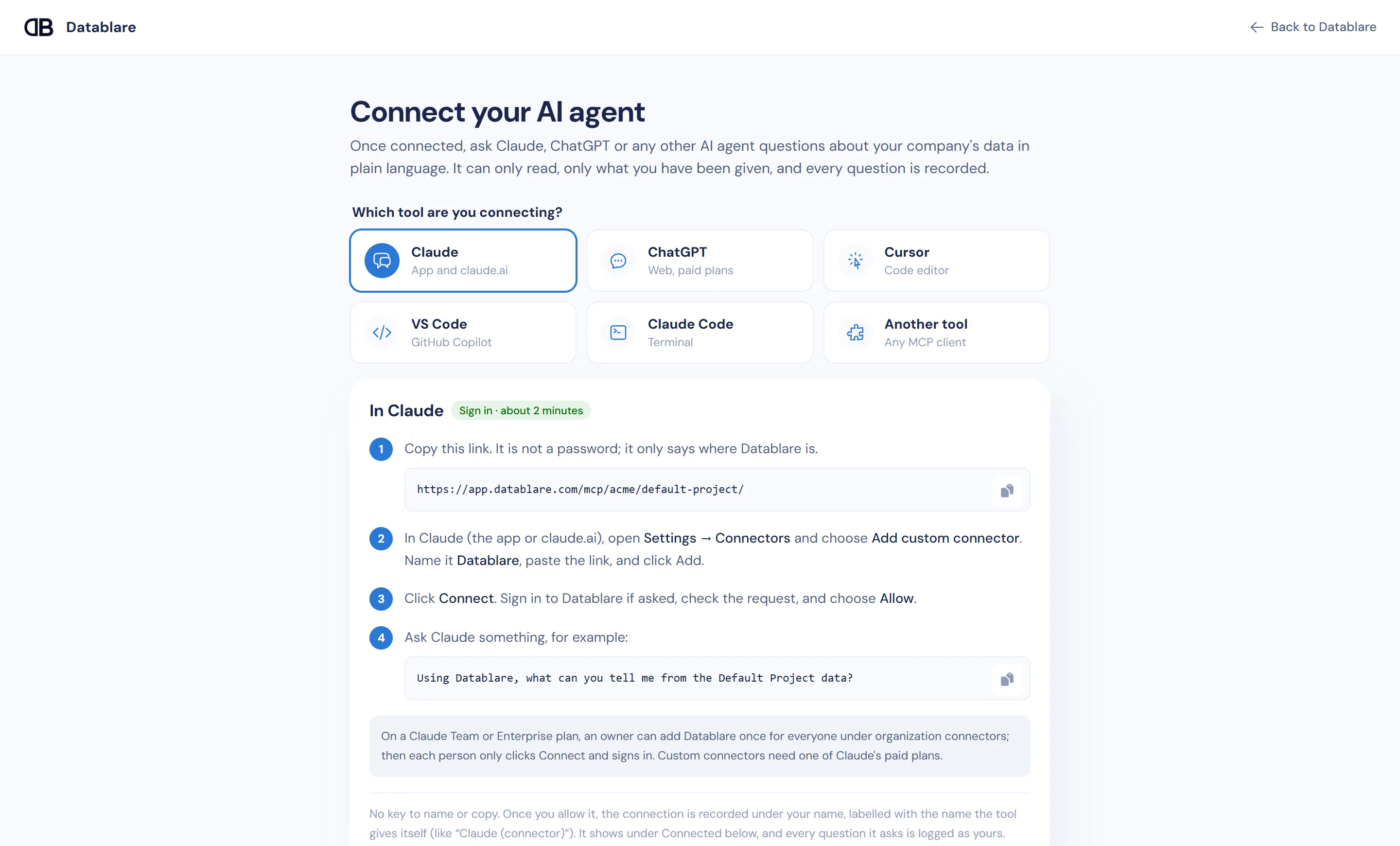
You can connect ChatGPT to your database by adding Datablare as a custom MCP connector. Turn on Developer mode in ChatGPT, create a connector with your Datablare project link and OAuth sign-in, then allow it in Datablare. ChatGPT can then answer questions from MySQL, PostgreSQL, SQL Server, Snowflake and other databases, but only by reading, only from the tables and columns you choose, and with every query recorded.
The problem with pasting data into ChatGPT
Most teams already “connect” ChatGPT to their data the hard way: someone exports a CSV, pastes it into a chat, and asks for a summary. That copy has no access control, goes stale the moment it is made, and leaves no trail of who shared what.
Wiring ChatGPT straight to a database login is not much better. The model writes SQL; if the login can write, so can the model, and every table the login can see is in play.
What Datablare puts in between
Datablare is a governed MCP server. ChatGPT sends it a question as a tool call; Datablare checks it and runs it.
- A SQL guard. Only a single
SELECT,WITHorVALUESquery passes. Write keywords, stacked statements, functions that read files or other servers, and sleep or lock functions are refused with a reason. - An allow-list of tables and columns. You pick the tables per project and can hide individual columns: a PAN, a phone number, a salary. A query that touches a hidden column is refused even if ChatGPT spells it out.
- A read-only session. On PostgreSQL, MySQL, MariaDB, Oracle and ClickHouse the database itself refuses writes; on SQL Server and Snowflake every query runs in a transaction that is always rolled back.
- An audit trail. Who asked, the question, the SQL, the outcome, rows and time, in the Audit page, with CSV export for managers on paid plans.
Query results go straight back to ChatGPT and are never stored by Datablare, which is hosted in India. Read more on how it works and security.
How the ChatGPT connector authenticates
ChatGPT connects to Datablare only with OAuth. When you create the connector, ChatGPT redirects you to Datablare’s consent page. You sign in with your own account and click Allow. Access follows your role: you need Analyst or higher on the project to allow it, and if an admin later removes you or lowers you to Viewer, the connection stops at its next refresh.
On a ChatGPT Business or Enterprise workspace, each colleague signs in with their own Datablare account, so a finance analyst and a sales lead can share the same connector setup yet see different data, each limited to what their Datablare role allows.
Create a read-only login first
Before you add the database, give Datablare a login that can only read. For MySQL:
CREATE USER 'datablare_reader'@'%' IDENTIFIED BY 'choose-a-strong-password'
  WITH MAX_USER_CONNECTIONS 5;

GRANT SELECT, SHOW VIEW ON shop.* TO 'datablare_reader'@'%';

-- Keep a column out entirely by granting columns instead of the table:
-- GRANT SELECT (id, city, created_at) ON shop.customers TO 'datablare_reader'@'%';
When you test the connection, Datablare tells you whether the login can only read. If it can write, you are asked to confirm before continuing; writes stay blocked either way. Engine notes: MySQL, PostgreSQL, Snowflake.
Try it on the e-commerce sample
Datablare’s built-in e-commerce sample lets you test the ChatGPT connector without connecting anything of your own. Once it is connected, ask:
- What was our average order value per month this year?
- Which product categories brought in the most revenue last quarter?
- Which customers ordered more than five times?
- Which sizes are most often out of stock?
Each answer shows up in Audit with the SQL that produced it, so you can check ChatGPT’s working.
Start now
Sign up free, connect a database or the sample, and follow the five steps above. Compare plans on the pricing page. Prefer Claude? See connect Claude to your database.